Deleting Events and Assessments
Company Admins and Facilitators can delete Events. Company Admins, Facilitators, and Site Users (Self Assessments only) can only delete Assessments.

Deleted Events and Assessments can be restored or permanently deleted within 30 days of deletion.
Delete an Event:
To delete an Event:
- Locate the Event to be deleted
- Select Delete from the drop-down menu beside the Event
- On confirmation pop-up, select Delete
The confirmation pop-up displays the number of assessments that will be deleted within the Event
Restore a Deleted Event
Deleted Events and their associated assessments appear in red on the Events Dashboard for Company Admin users. Deleted Events are not visible to Facilitators or Site Users.
To restore a deleted event:
- Select Restore from the drop-down menu beside the deleted Event
- Click Restore on the confirmation pop-up
- Restore any deleted assessments within the Event to regain full access to the assessments
Once restored, the Event reappears on the Events Dashboard for all users with access permissions.

Note: if a Facilitator or Site User accidentally deletes an Event, contact a Company Admin to restore it.
Permanently Delete an Event
Only Company Admin users can permanently delete Events. Once permanently deleted, an Event and all associated assessments can no longer be restored.
To permanently delete an Event:
- Select Delete Permanently from the drop-down menu beside the deleted Event.
- Click Delete on the confirmation pop-up.
Note: Deleted Events that are not restored within 30 days are automatically permanently deleted from the system.
To Delete an Assessment
Assessments can be deleted by Company Admins, Facilitators, and Site Users (Self-Assessments only). Deleted assessments can be restored or permanently deleted for 30 days after being deleted by a Company Admin user.
To delete an Assessment:
- Locate the Event containing the Assessment
- Click the Event name to view the list of associated Assessments
- Select Delete from the drop-down menu beside the Assessment
- Click Delete on the confirmation pop-up window
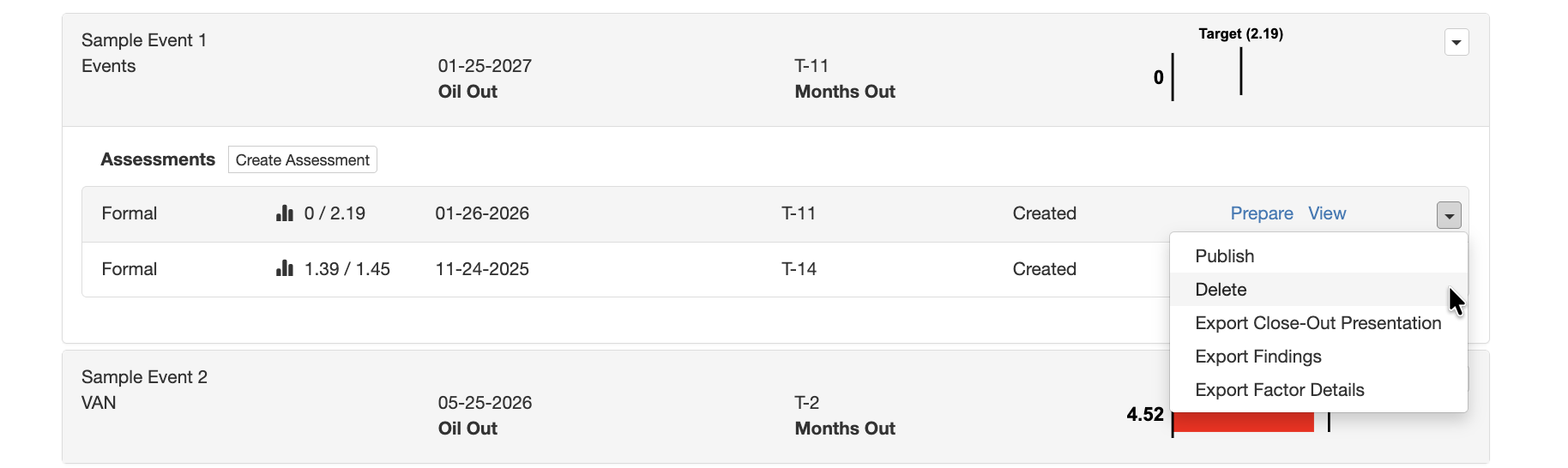 Delete Assessment
Restore a Deleted Assessment
Deleted assessments appear in red on the Events Dashboard for Company Admin users. Deleted assessments are not visible to Facilitators or Site Users.
To restore a deleted assessment:
- Select Restore from the drop-down menu beside the deleted assessment
- Click Restore on the confirmation pop-up.
Once restored, the assessment reappears on the Events Dashboard for users with access permissions.
Note: If a Facilitator or Site User accidentally deletes an assessment, contact a Company Admin to restore it.
Permanently Delete Assessments
Only Company Admin users can permanently delete assessments. Once permanently deleted, an assessment can no longer be restored.
To permanently delete assessments:
- Select Delete Permanently from the drop-down menu beside the deleted assessment
- Click Delete on the confirmation pop-up
Note: Deleted assessments that are not restored within 30 days are automatically permanently deleted from the system.
Related Articles
Manage Events and Assessments Overview
Within Carve, Assessments are contained in Events, which can be assigned to Portfolios. Events contain Turnaround Readiness (TAR) Assessments. To manage events, users can: Create Assessments View Assessments (view mode) Complete Assessments Delete ...Events Dashboard
Within TAR, all events are organized under the Events Dashboard. Assessments are contained within Events, which can be assigned to Portfolios. Default Dashboard Selection The Events Dashboard may be configured as the default landing page when users ...Viewing Assessments (View Mode)
To access assessments in view mode (view-only): From the Carve Events dashboard, select the name of the Event containing the assessment. Click on View beside the relevant assessment. Assessment Session Summary Within a TAR Assessment, users can view ...Create Assessments in an Event
Assessments are created within Events in the TAR module. Depending on the user role and assessment type, users can create either Formal Assessments or Self Assessments. Creating a Formal Assessment After selecting Save when creating an Event, a new ...Edit Events
Edit Event Details To edit an Event: From the Events dashboard, locate the Event to be edited. Select the drop-down menu and select Edit. Click Save. Edit Event Details The following event details can be edited: Event Name Oil Out Date Portfolio - ...